How I Added Comments to my Blog
Last updated: 8 minutes ago
Intro
I have been wanting comments directly on my blog for as long as I have been on BearBlog. I think not having them is a massive downfall. I understand Herman's reasoning behind it, but to send a reader elsewhere to comment on something, I consider a huge friction point. The moment a site tries to send me somewhere else to do something that I believe should be done directly on the site, I lose all interest and leave. Same with needing to create and account and sign in; it's just a comment.
I have been poking at it and I finally got it set up. Now I have comments on both my blogs. To do this, you do need a paid BearBlog account, but everything else is free. I set up a free Disfora account for the comments management. I also needed to set up a Cloudflare Turnstile so that I could allow the comments to be posted without an account. This means that as a commenter, you need to do a captcha to leave a comment but you don't have to create an account or sign in or anything.
Disfora
First thing you need to do is create an account on Disfora, it's free. They do have a paid tier.
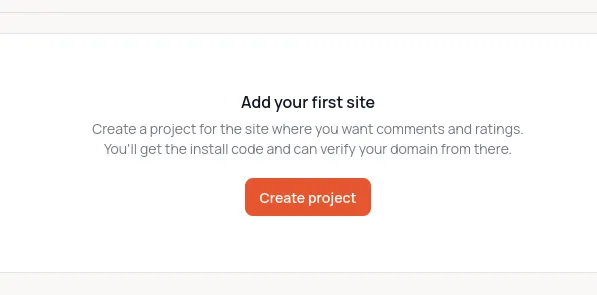
Once the account is made, you're greeted with a blank page and a Create project button; click it!
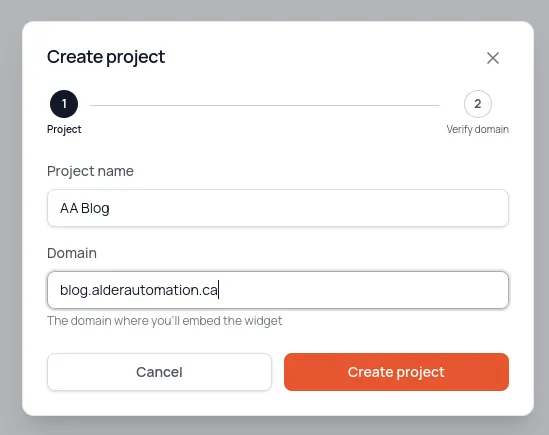
It will then ask you for a name and the domain that your blog resides on. Fill in both. Then click the Create Project button.
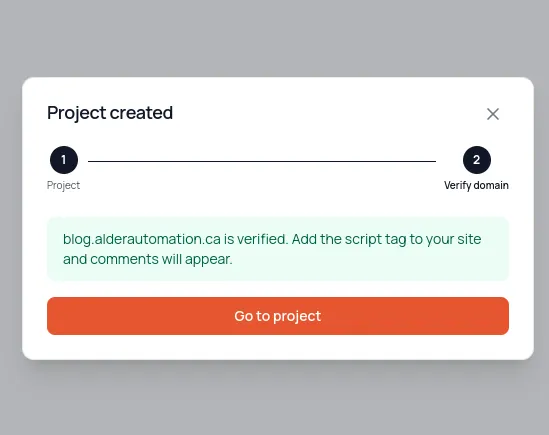
The next screen should say project created, but they need to verify the domain. They give you three options to verify your domain. For BearBlog, I used the first option, "Meta Tag". Copy the code from there and then go to your BearBlog. Go into Settings and click on Header and Footer directives. Paste that code into the head directive box and click the save button. Sorry not doing screenies for this part, just in case there is sensitive info there.
Go back to the Disfora site, and click the verify button. It should give you a success message after a moment, click the "Go to project" button.
Now the very first thing you'll see is likely the Needs Attention section. Ignore that. :P We want to past that to the "Add the loader script" and grab that script code. And we put that code in every post that you want comments on.
You also will need the "Add Container" code as well. They give you 3 container options, I grabbed "comments only" code.
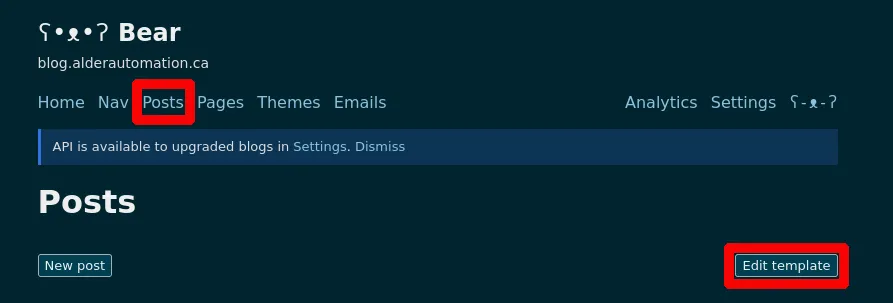
I would suggest putting both the loader and container in your BearBlog post template. To do that: go to the posts section and click the Edit Template button.
The biggest problem with this setup.... is if you want comments on all your historical posts, you have to manually go through and add it. With the new BearBlog API, that might be easier to do, but I haven't investigated the API that far yet.
Cloudflare Turnstile
So now we have comments on the new posts, but we haven't configured the no sign in required requirement. Let's go back to Disfora for a second and click on settings. The second option is Allow Guest Comments but it wont toggle on right now.
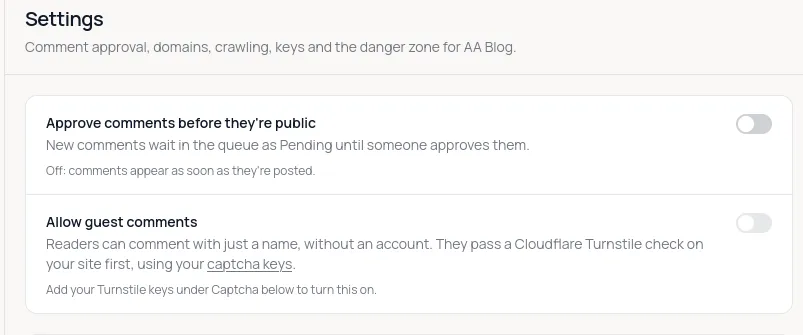
Further down is the Captcha section, and in that section is a link to cloudflare, head there and create an account.
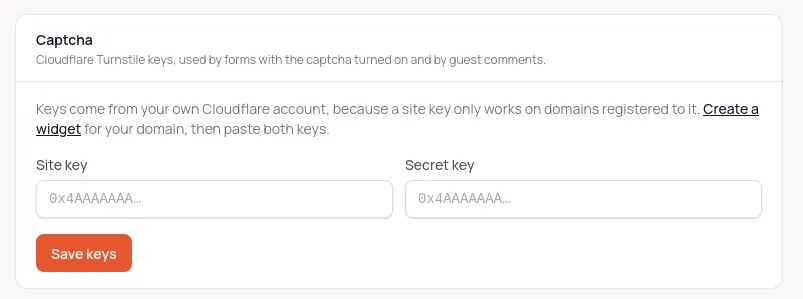
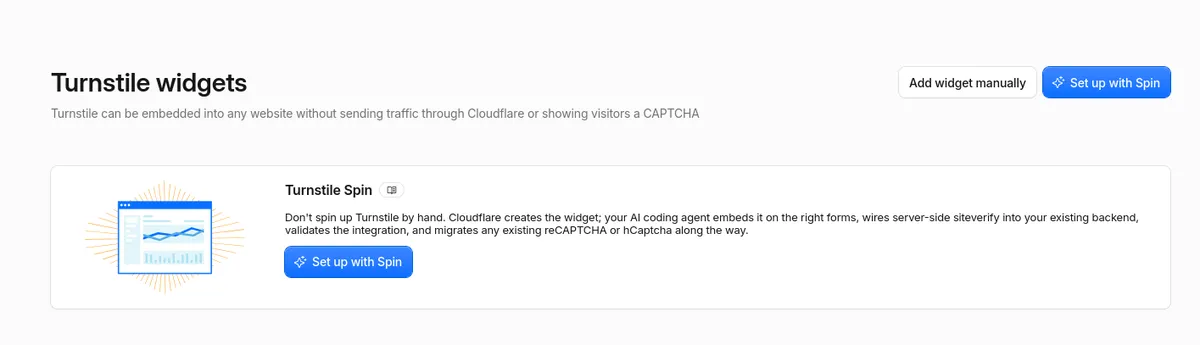
After the account is made, the site should open the Turnstile Widget screen, click on "Set up with Spin" button
It will ask you for the domain name of your blog. If done right (said with understanding because I messed it up a few times) you will get a site key and a secret.
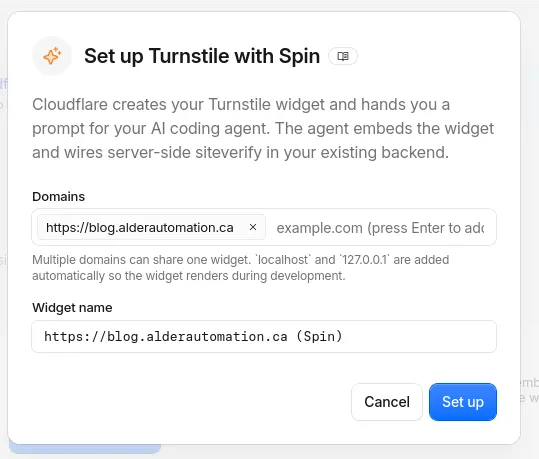
Both of these need to be pasted in the previous Disfora captcha settings screen. No screenies of this step, definitely some privacy concerns here. lol.
In the cloudflare turnstile we can click done and logout, we're done here.
And in the Disfora settings, click the save keys button. Now we should be able to enable the "Allow Guest Comments" toggle.

[Update] I forgot to mention, put at least one comment in yourself, to activate the comment section. And as far as I know, in Disfora's free tier there are no notifications when you get comments.
And that's it, we should be done. Go create a new post. and comment on it. go play.
References
Disfora Comments
Cloudflare Dashboard
If you want me to elaborate on anything, please leave a comment below, message me on Discord, Mastodon, X, or email me. I’ll be happy to go into more detail one-on-one or to create more posts.